
Start here
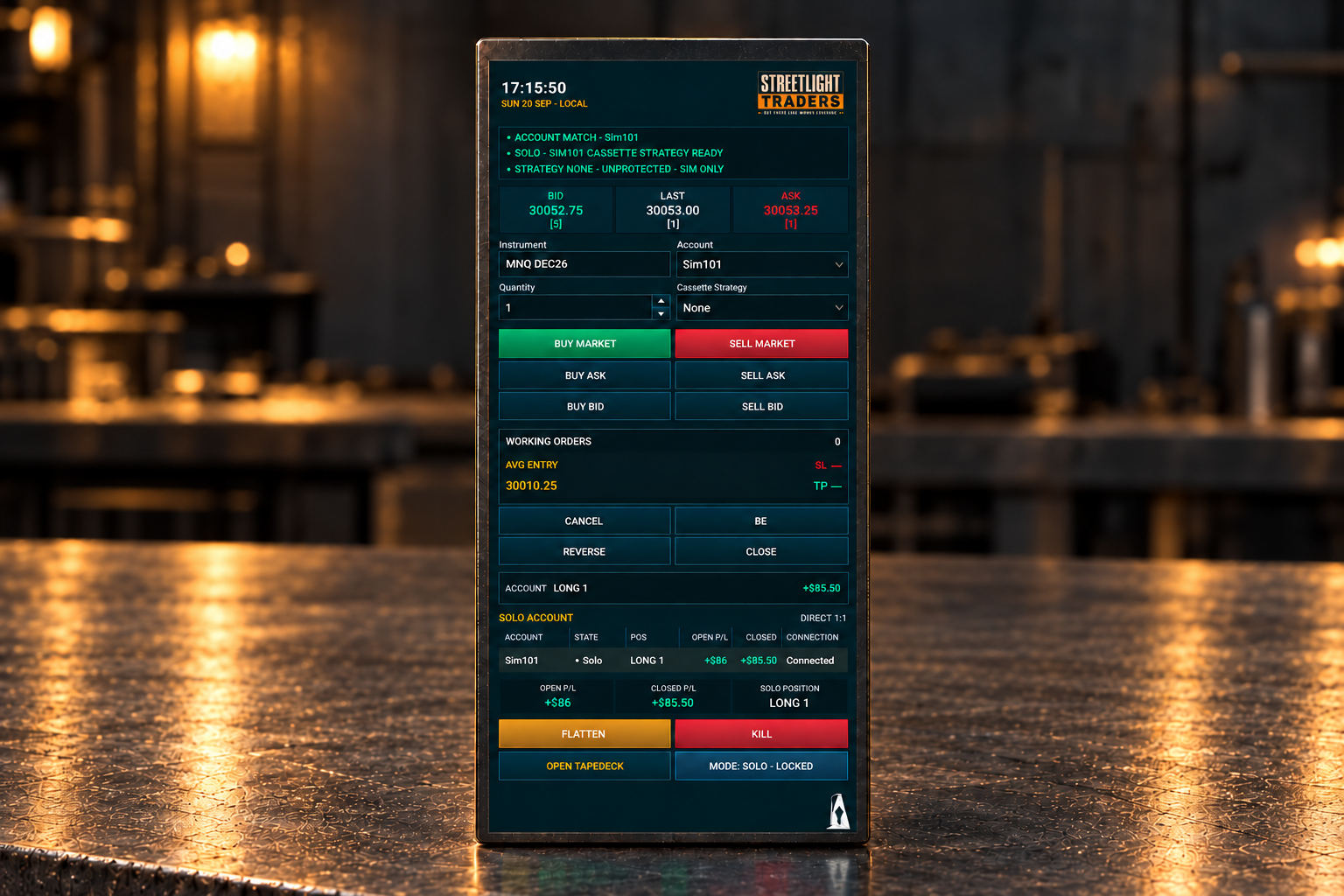
Cassette Deck puts entry, position management and protection controls beside your NinjaTrader chart. In SOLO, it manages that chart’s selected account. With ready TapeDeck in COPIER, it manages the Leader; TapeDeck manages Followers. Cassette is not a signal service or a loss-prevention guarantee.
Before you install
- A Windows computer with NinjaTrader Desktop installed and working.
- The supplied StreetLight NinjaTrader import ZIP for this product. Keep it intact; do not select a raw .cs file or unpack/copy source into NinjaTrader folders.
- A working simulation account and connection appropriate to the SIM test. Check current broker/provider rules before any later non-SIM use.
- A safe time to restart: all affected positions Flat, unintended orders resolved and both products stopped.
Use the package and installation instructions supplied with your purchase. If you cannot find your download or need help choosing the correct file, contact Support before importing.
Use one Cassette context per Chart window. A second chart tab is not a separate context. For the first test, leave TapeDeck stopped so you can learn SOLO first.
Read the safety information before any order. Native Chart Trader account and quantity synchronize with Cassette; its ATM Strategy does not. Use native ATM None for the Cassette-managed workflow.
Back to top ↑Installation — import the ZIP
1. Save the supplied package
Download the supplied Cassette Deck NinjaTrader import ZIP to a folder you can find again, such as Downloads. Keep the archive unopened. If an older version is already installed, read Updating before importing.
2. Open the importer
Open NinjaTrader Desktop and locate the Control Center — the main window containing the New and Tools menus. Choose Tools → Import → NinjaScript Add-On…. Select the supplied Cassette Deck ZIP and press Import.
3. Confirm the trusted archive
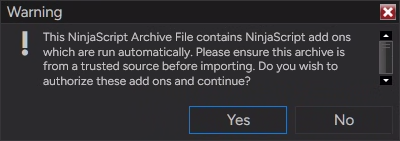
NinjaTrader may ask whether to authorize AddOns in the archive. Confirm only if this is the verified StreetLight package you intended to import. Otherwise choose No and contact Support.
4. Allow the product import to compile
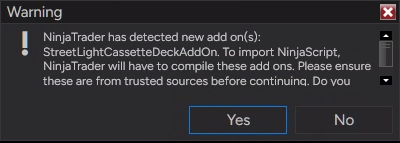
If NinjaTrader reports the new AddOn below, review the product identity and allow the compile/import to proceed. An import or compile error is not a successful installation. Stop and use Troubleshooting; do not keep importing duplicate copies.
5. Finish the restart/reboot
Wait for the import to finish without errors. If NinjaTrader shows a restart prompt, acknowledge it, then close NinjaTrader completely. After Cassette is installed, replaced, updated or compiled, perform a full Windows restart before relying on Open TapeDeck. Reopen NinjaTrader after Windows finishes restarting.
6. Verify — do not trade yet
Follow Verify installation below. A finished import dialog alone does not prove that the correct product opened successfully. Complete the first test in SIM.
Missing the supplied package or unsure which file is correct? Contact Support before importing. Purchasing questions go to Sales. Do not install an archive received from an unverified private message.
Menu reference: NinjaTrader’s AddOn installation guide. StreetLight-specific restart and verification checks still apply.
Back to top ↑Verify installation
1. Open the intended chart
From Control Center choose New → Chart and open the full instrument/contract you intend to test. Use a SIM account. Keep native Chart Trader visible while setting up so you can compare account and quantity.
2. Turn Cassette on
Choose Control Center → New → Cassette Deck™. This checked menu item turns Cassette on for eligible Chart windows; it is not an indicator you add through the Indicators dialog. Cassette starts off when NinjaTrader starts.
3. Expand the cockpit
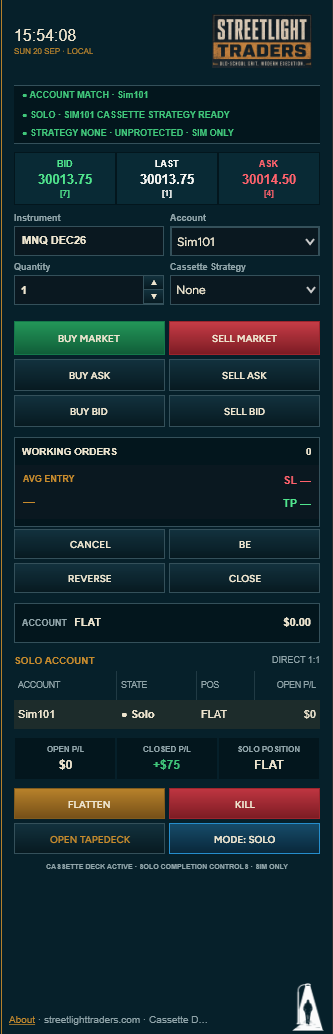
Look at the side of the chart for the collapsed Cassette strip / StreetLight figure. Click its open control to expand the cockpit. The collapse control folds it away; it is not the trade CLOSE button.
4. Verify the current version and context
Use the cockpit’s About link to check Version 1.1.10. Confirm the correct chart instrument, synchronized SIM account/quantity and expected readiness. For SOLO verification, keep TapeDeck stopped; a ready ACTIVE TapeDeck can trigger safe COPIER recognition.
If the cockpit opens with the expected current identity, Cassette has loaded. Complete the SIM test below before relying on it. If no strip appears, confirm the menu is checked and the Chart window is eligible. If still absent or stale, use Troubleshooting and Remove / reinstall.
Back to top ↑First run in simulation — SOLO
1. Open and confirm SOLO
Follow Verify installation above. Keep TapeDeck stopped for this first independent test. Expand Cassette and confirm SOLO, the full chart instrument and contract month.
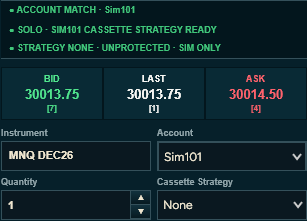
2. Set SIM account, Quantity and strategy
On this Chart window confirm the same SIM account in native Chart Trader and Cassette. Chart Trader wins initial account/quantity; later safe changes synchronize both ways. Set a small Quantity, such as 1, and verify both displays. Set native Chart Trader ATM Strategy → None.
3. Choose protection deliberately
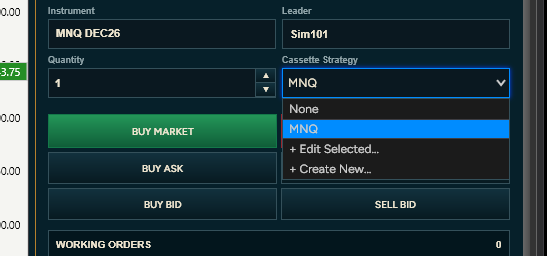
Select an existing Cassette Strategy after checking its Stop Loss, Take Profit, units and Default Size. If none exists, choose Create New, supply those values and save, then select it. Recheck Quantity after selecting a strategy. Alternatively choose None deliberately: it creates no Cassette protection and requires your own exit plan. See Cassette Strategies before setting unfamiliar values.
4. Verify readiness, then enter once
Confirm account match, SOLO readiness, correct contract, Quantity and chosen strategy. Resolve unexplained positions/working orders first. Press the intended BUY MARKET or SELL MARKET once for a small SIM test. Wait for confirmed order/position state; do not press again simply because it seems slow.
5. Inspect the position and any expected protection
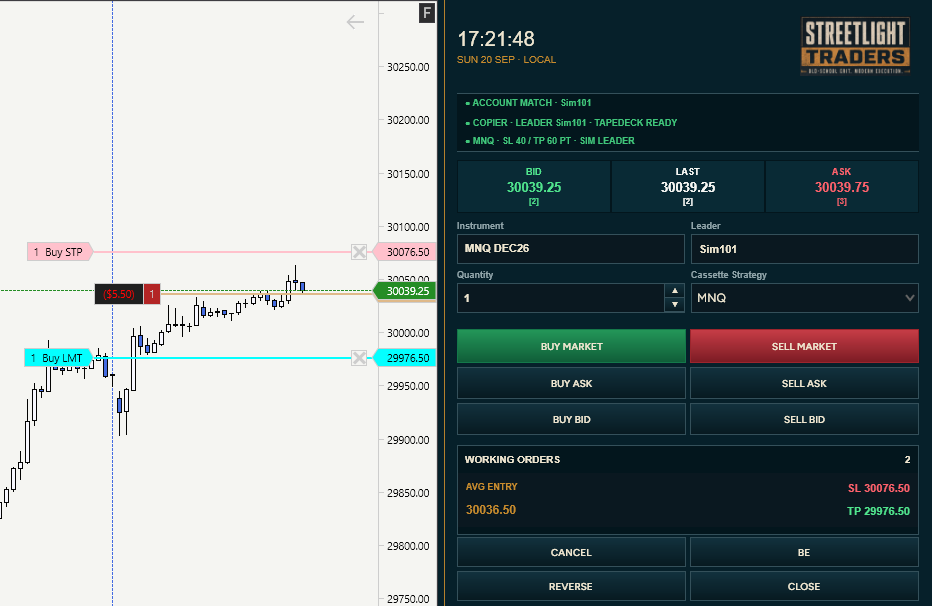
Check working-order count, average entry and actual position. With a protected strategy, verify native Stop Loss and Take Profit in Orders and on the same-account Chart Trader view. With None, expect no Cassette stop/target.
6. Close and verify Flat
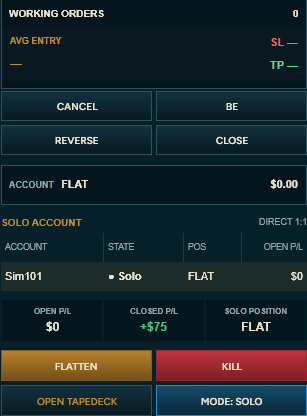
Press CLOSE for the current SIM account/instrument, then wait for completion. Verify Flat and no unintended working orders in NinjaTrader’s Positions and Orders tabs before another cycle. Do not confuse CLOSE with CANCEL: CANCEL can remove protection and leave the position open.
Back to top ↑Understanding the interface
| Area | What to check |
|---|---|
| Annunciators | Account match, mode, readiness and strategy. Resolve mismatches before entry. |
| Bid / Last / Ask | Market context, not a guaranteed fill price. |
| Instrument / Account or Leader / Quantity | Verify full contract, execution target and size before every action. |
| Cassette Strategy | Your saved protection setup; None means no Cassette stop/target. |
| BUY / SELL | Market or bid/ask entry; eligible same-side add or opposite-side reduction on an owned position. |
| Working orders / Avg entry / SL / TP | Compare with actual NinjaTrader Orders and chart lines. |
| CANCEL / BE / REVERSE / CLOSE | Different management scopes and effects; read the references below before using. |
| FLATTEN / KILL / RE-ARM | Scoped completion/emergency path and deliberate two-step re-arm; not global account liquidation. |
| OPEN TAPEDECK / Mode | Launch/focus TapeDeck; verify safe SOLO/COPIER context. |
| About / Show Log / Get Support | About contains privacy and current support/diagnostic access. |
Normal operation
Check account, full contract, Quantity, strategy and readiness before each action. Learn the controls below in SIM; keep the position and native order inventory in view.
Chart-window model
One NinjaTrader Chart window = one Cassette context. Use separate Chart windows for multiple independently managed instruments. Multiple native tabs inside one Chart window are not separate Cassette contexts.
Open the intended Chart window and enable/expand Cassette. Startup presentation is collapsed/SOLO; subsequent safe TapeDeck readiness recognition may change the operating mode. Verify the displayed context before entry.
Chart Trader account and quantity
When Cassette and that Chart window’s native Chart Trader controls initialize, Chart Trader wins initial account and quantity state. After initialization, safe account and quantity synchronization is bidirectional for that exact Chart context. A safely changed account or quantity on one surface is reflected on the other.
| Synchronized | Not synchronized |
|---|---|
| Account | Chart instrument |
| Quantity | Native Chart Trader ATM Strategy |
An unexpected mismatch is a reason to stop new entries and inspect the actual account, chart context and safety state. Verify both displays before submitting an order.
Account availability
Cassette presents currently connected and usable accounts together with appropriate simulation/playback contexts. Disconnected historical live accounts are not available execution targets.
If a selected live account disconnects, Cassette does not silently substitute another live account. A deliberate valid account selection is required. Do not assume Cassette automatically chooses a live account.
Entry controls
| Control | Requested action |
|---|---|
| BUY MARKET | Requests an immediate market buy. |
| SELL MARKET | Requests an immediate market sell. |
| BUY ASK / SELL ASK | Submits the corresponding price-based instruction using displayed ask context. |
| BUY BID / SELL BID | Submits the corresponding price-based instruction using displayed bid context. |
For an eligible Cassette-owned open position, the same controls use the selected Quantity to add or reduce: BUY adds to a Long and reduces a Short; SELL adds to a Short and reduces a Long. An opposite-side reduction is capped at the remaining confirmed reducible quantity, accounting for outstanding Cassette reductions, rather than deliberately crossing Flat. Price-based instructions are limit orders and may remain working. Use REVERSE when deliberately changing direction.
Open-position actions can be refused when ownership is not proven, the initial entry is still working, protection is not ready, CLOSE is in progress or working-order inventory cannot be verified. Resolve the displayed reason before another instruction.
Cassette Strategies
A Cassette Strategy stores configuration such as strategy name, Stop Loss, Take Profit, units and Default Size. Selecting a saved strategy can supply its starting quantity. A trader-selected Quantity change affects the intended action without necessarily rewriting the saved strategy’s Default Size.
Use the Cassette Strategy selector to choose a saved strategy, Edit Selected or Create New. Review the saved values and units before using it. Stop/Target settings do not guarantee a maximum loss: actual loss can differ with gaps, movement, latency, slippage, rejection or other execution conditions.
- While safely Flat/clean, open the Cassette Strategy dropdown.
- Choose Create New to make a preset, or select a preset and use Edit Selected.
- Review name, Stop Loss, Take Profit, units (ticks, points or dollars) and Default Size. Choose values you understand for this instrument; there is no universally safe preset.
- Save your configuration, select it, then verify the displayed strategy and Quantity before entry.
- After a protected SIM entry fills, confirm the resulting native stop/target; saved settings are not a guarantee of maximum loss.
Protection and Strategy None
After an eligible Cassette Strategy entry fills, Cassette can create native protective Stop Loss and Take Profit orders. These may share an OCO relationship. When native Chart Trader displays the synchronized account, the orders can appear as native chart lines and can be adjusted on the chart. Verify the actual changed order after any chart adjustment.
A position that Cassette recognizes/manages after external/manual entry does not automatically receive new Cassette protection. A stop/target configuration is not a promise that an order was accepted or that loss is capped; verify native Orders and Positions.
Manual / external positions
Cassette distinguishes owning an order from managing a confirmed position. A positively confirmed externally originated SOLO position can enter a management-only lifecycle. External entries, adds, reductions, closes and reversals can change the confirmed position Cassette manages.
Cassette does not automatically adopt external orders as owned protection. A manual stop or target does not become Cassette-owned because it resembles one or exists beside the position. External working orders do not universally disable Cassette merely because they exist; duplicate-submission, lifecycle, ownership, collision and inventory checks still apply.
Reductions are constrained not to cross Flat. Exposure-increasing, reversal-risk or over-reserved activity can be refused. Do not stack new instructions over pending reductions or force ownership of ambiguous protection. Inspect actual inventory and resolve warnings first.
Break even — BE
BE acts only on eligible, positively identified Cassette-owned protective stop orders. It does not modify arbitrary manual/external stops and is not promised for every externally opened or management-only position.
After requesting BE, verify the updated native stop order and chart line. If BE is unavailable, check protection ownership and eligibility rather than repeatedly pressing it.
CANCEL
CANCEL cancels ALL active orders in the captured account / current-instrument scope — including Cassette, ATM, Chart Trader, manual and other external active orders within that scope. It is not limited to Cassette-owned orders.
- Check working-order count.
- Check NinjaTrader Orders.
- Check the actual position.
- Confirm whether the remaining position is intentionally protected or intentionally unprotected.
Treat cancellation as a request until native order state settles. Do not assume cancellation means exposure is gone.
CLOSE
CLOSE closes the current scoped managed position. It cancels active orders in the captured account/current-instrument scope, settles cancellation/fill races, re-reads the actual position and requests the exact remaining offset necessary to reach Flat. Completion requires the scoped position and actionable working-order state to settle appropriately.
CLOSE is not all-account/all-instrument liquidation. In COPIER mode it acts on the TapeDeck Leader. TapeDeck independently responds to the confirmed Leader position change and manages Followers; Cassette does not directly close Followers.
Do not confuse trade CLOSE with collapsing the cockpit or closing an About/Support dialog. Verify the actual position and remaining orders after the request.
REVERSE
REVERSE deliberately changes direction. Cassette first performs required cleanup toward confirmed Flat. Only after Flat is confirmed does it request the opposite position. It is state-aware and completion-aware, not a blind twice-position market instruction.
- Verify the previous direction closes.
- Verify the Flat transition.
- Verify the opposite position is confirmed.
- Verify resulting protection and working orders.
FLATTEN
FLATTEN requests closure of the captured account/current-instrument scope and applicable cleanup. It may affect external/manual active orders within that scope.
Always verify final Orders and Positions.
KILL
KILL is the emergency cleanup path for the captured account/current-instrument scope. It performs applicable cleanup and places Cassette into a latched KILLED state. New Cassette entries remain blocked until deliberately re-armed.
RE-ARM after KILL
Before re-arming, cleanup must have completed, the captured scope must be connected, the position must be confirmed Flat, and the required working-order inventory must be zero/clean. Resolve any ownership or cleanup warning first.
- Use RE-ARM to arm the deliberate confirmation.
- Click CONFIRM RE-ARM within 5 seconds.
- Verify the resulting ready state and account context before any new entry.
Flat transition and external-order cleanup
Cassette does not indiscriminately sweep every historical or unrelated order merely because the position reaches Flat. Direction-relative cleanup applies to positively associated active external reductions belonging to the immediately preceding non-flat position where current logic identifies them.
Historical, unrelated, non-reduction or uncertain orders are not automatically owned or automatically cancelled unless the explicit scoped control being used defines that behavior. When uncertain, check NinjaTrader Orders and Positions.
End of session
- Stop submitting new Cassette entries.
- Review each active Cassette Chart context.
- Confirm mode.
- Confirm account or Leader.
- Confirm instrument.
- Confirm position.
- Open NinjaTrader Positions.
- Confirm every intended finished account/instrument is Flat.
- Open NinjaTrader Orders.
- Resolve every unintended working order.
- In COPIER mode, verify TapeDeck Leader and Follower states independently.
- Resolve rejections, disconnects, KILLED states, ownership warnings or unexplained orders before closing NinjaTrader.
A quiet chart is not proof the session is complete. Do not collapse, unload or recreate a context to bypass an active-cycle or recovery refusal. Collect useful memory-only diagnostics before a safe shutdown.
Cassette + TapeDeck
1. Prepare TapeDeck first
Open TapeDeck, select the SIM Leader, arm only the intended SIM Followers and confirm the required connected/Flat state. Press START and confirm ACTIVE. Keep TapeDeck visible.
2. Prepare Cassette on the intended chart
Turn Cassette on and expand it. Cassette can recognize ready ACTIVE TapeDeck automatically. Confirm COPIER is actually displayed; if not, use the mode control only from a safe Flat/clean state and recheck readiness. Do not assume merely opening TapeDeck makes it ready.
3. Verify the shared Leader
Compare Cassette’s Leader field with TapeDeck’s selected Leader. Verify synchronized chart account, full contract month, Quantity and Cassette Strategy. Set native ATM Strategy None for this managed workflow.
4. Enter and manage from Cassette
Submit one small Leader entry from Cassette. Cassette manages that Leader trade and its eligible protection. TapeDeck responds to confirmed Leader position changes and reconciles Followers. A resting bracket is not cloned to the Followers.
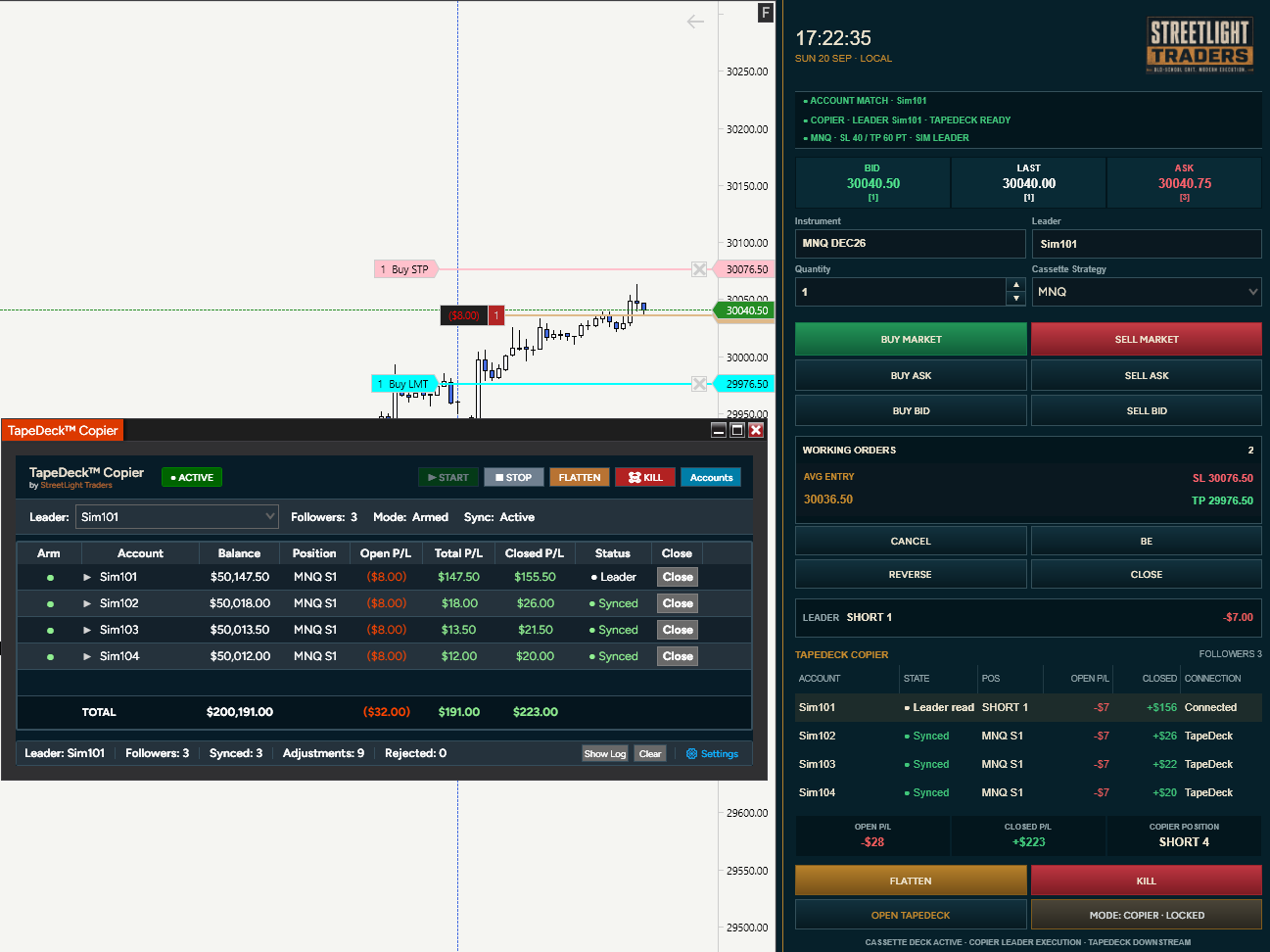
5. Use the right product for the action
Use Cassette for Leader management. Inspect or deliberately close an individual Follower in TapeDeck; Cassette’s downstream Follower display is not a Follower-control surface. A deliberately removed Follower lane becomes HELD until the corresponding Leader contract returns Flat.
6. Complete and check every intended account
Close the Leader, wait for TapeDeck reconciliation and check NinjaTrader Positions and Orders for the Leader and all intended Followers. Do not infer completion from only one product’s Flat label.
COPIER mode with TapeDeck
COPIER makes Cassette the Leader-side execution and management surface for TapeDeck. TapeDeck independently owns Follower synchronization; Cassette does not directly manage individual Followers.
Cassette automatically recognizes TapeDeck when it is ready. When TapeDeck is ACTIVE and ready, Cassette can safely recognize/adopt the TapeDeck Leader context and reflect it through the chart’s synchronized account state. TapeDeck merely being open is not sufficient.
Before a COPIER entry
- TapeDeck is open, ACTIVE and ready.
- The intended Leader is correct and intended Followers are armed.
- Cassette displays the expected operating mode and Leader.
- Chart instrument/full contract, quantity and Cassette Strategy are correct.
- Native Chart Trader ATM Strategy is None for the Cassette-managed workflow.
Keep TapeDeck available whenever individual Follower status or Close may be needed. Review TapeDeck’s preflight and Flat-state START requirements.
Returning Cassette to SOLO suppresses automatic re-adoption while the current TapeDeck-ready condition persists. A later TapeDeck not-ready → ready cycle may permit recognition again. Mode changes remain subject to safe lifecycle/exposure gates.
Updating
An update is a deliberate package import, not an automatic background update. TapeDeck’s Check for Updates text is not an updater.
- Finish all affected trades; confirm Positions are Flat and resolve unintended Orders. Stop TapeDeck synchronization and finish each Cassette context before closing anything.
- Record your currently installed version and keep the prior approved package separately. Do not assume uninstall or replacement preserves every setting.
- Close NinjaTrader completely, then reopen it in a safe, non-trading session.
- Follow the new package’s release instructions. A normal ZIP update uses Tools → Import → NinjaScript Add-On and the replacement ZIP. Accept replacement prompts only for the intended product files. Do not remove first unless the approved release instructions require removal; use the separate removal procedure when they do.
- If removal is required, remove only the identified product component and restart NinjaTrader before importing the replacement; loaded assemblies are not unloaded immediately.
- Require an error-free import/compile. If it fails, stop; save the error details for Support.
- Close NinjaTrader completely. Perform a full Windows restart before relying on Cassette’s Open TapeDeck integration.
- Reopen NinjaTrader, use Verify installation, check the version in About, and repeat one small complete First run in simulation before non-SIM use.
Follow the update instructions supplied with your package. If you are unsure which installed component to replace, contact Support before proceeding.
Back to top ↑Remove / clean reinstall
Closing a window or turning a product off does not uninstall it. Removal depends on whether the supplied import ZIP contains a protected assembly or non-protected NinjaScript. A ZIP alone does not identify which removal path applies.
1. Make the platform safe
Confirm affected accounts/instruments Flat and resolve Orders. Stop TapeDeck, finish Cassette cycles and close all NinjaTrader windows. Preserve useful diagnostics before shutdown, especially Cassette’s memory-only log.
2. Reopen only to remove the identified component
For a protected assembly, use Control Center → Tools → Remove NinjaScript Assembly, select only the StreetLight assembly identified by the release instructions, then press Remove NinjaScript assembly. If its identity is unclear, stop and contact Support. Do not remove an unidentified component.
Alternative: non-protected NinjaScript
Only if the release instructions identify your package as non-protected: open New → NinjaScript Editor, expand the relevant AddOns folder in NinjaScript Explorer, locate the exact product script and right-click → Remove. Do not use this branch for a protected assembly or remove unrelated scripts.
3. Restart before reinstalling
Close NinjaTrader completely and restart it. NinjaTrader does not unload a removed assembly until restart; do not immediately re-import the same assembly into that running session.
4. Confirm removal
Check Control Center → New. The removed Cassette Deck entry should no longer be available. If it remains, stop and report the installed component names and error details to Support; do not delete folders or DLLs by trial and error.
Clean reinstall
- After the supported removal and full NinjaTrader restart, import only the current approved product ZIP using Installation above.
- Require the import/compile to finish without errors.
- Close NinjaTrader completely. Perform a full Windows restart before relying on Open TapeDeck.
- Reopen NinjaTrader, verify the product menu/interface/version, configure SIM and complete one small entry-to-Flat validation.
Removal reference: NinjaTrader assembly-removal guide. Use the component name and removal instructions supplied with your product package.
Back to top ↑Troubleshooting
| Problem | Check | What to do |
|---|---|---|
| Import / compile fails | Exact error, correct product ZIP, duplicate installed versions and existing NinjaScript errors. | Stop imports. Keep the error details and installed component list. Contact Support; do not delete unrelated scripts or edit source to silence errors. |
| Product missing after import | Import completed without errors; NinjaTrader fully restarted; correct New menu. | Follow Verify installation. For Cassette, check New → Cassette Deck is checked and the chart strip can expand. If still missing, contact Support. |
| Old version or stale runtime | About version and whether NinjaTrader truly exited. | Close completely; use the documented Windows restart where required. If the old version persists, use the supported removal path only for the exact identified product component. |
| Open TapeDeck fails after Cassette change | Complete Windows restart after installation/replacement/update/compile. | Perform the required full Windows restart, reopen and test in SIM. If it still fails, collect reviewed diagnostics and contact Support. |
| Problem | Check | Action |
|---|---|---|
| Native stop/target not visible | Synchronized account, chart context, Strategy None versus owned protection, actual NinjaTrader Orders. | Stop new entries and verify NinjaTrader Orders and Positions. Check native order existence and chart visibility. Do not assume an absent line means no order, or a managed external position has a Cassette bracket. |
| Account mismatch | Exact Chart window, native account selector, connected usable account and lifecycle safety gates. | Stop new entries and verify NinjaTrader Orders and Positions. Resolve state before a safe account change; verify synchronization on both surfaces. Do not use the old independent-selector workflow. |
| Quantity mismatch | This chart’s native quantity, Cassette quantity and initialization/safety state. | Stop new entries and verify NinjaTrader Orders and Positions. Resolve mismatch before entry and verify both displays. Do not compensate by repeated orders. |
| Unexpected native ATM Strategy | Native Chart Trader ATM selector, separate from Cassette Strategy. | Stop new entries and verify NinjaTrader Orders and Positions. Set native ATM to None for Cassette-managed workflow when safe; verify actual existing orders separately. |
| COPIER not recognized / entry blocked | TapeDeck open, ACTIVE/ready, intended Leader/Followers, chart alignment and current lifecycle. | Stop new entries and verify NinjaTrader Orders and Positions. Correct readiness from a safe state, then verify actual Cassette mode and Leader before entry. |
| Wrong Leader displayed | TapeDeck Leader and Cassette synchronized chart account. | Stop new entries and verify NinjaTrader Orders and Positions. Stop entries; resolve the configuration safely and verify the target. |
| Mode cannot safely change | Exposure, working orders and active lifecycle. | Stop new entries and verify NinjaTrader Orders and Positions. Finish and verify the current cycle before changing mode; do not bypass its gate. |
| Working-order count unexpected | Actual native inventory, order origin, account and full instrument. | Stop new entries and verify NinjaTrader Orders and Positions. Resolve actual orders deliberately. A similar-looking manual order is not proof of owned protection. |
| External/manual position detected | Confirmed position and management-only/ownership state. | Stop new entries and verify NinjaTrader Orders and Positions. Manage only a positively confirmed supported context. Do not assume external orders were adopted or new protection was created. |
| BE unavailable | Eligible positively identified Cassette-owned stop. | Stop new entries and verify NinjaTrader Orders and Positions. Verify protection/ownership. Do not expect BE to alter arbitrary external/manual stops. |
| CANCEL used while position remains open | Actual position and remaining protection/order inventory. | Stop new entries and verify NinjaTrader Orders and Positions. CANCEL does not flatten. Deliberately manage or close remaining exposure through a verified scoped workflow. |
| KILLED state remains | Actual cleanup completion, Flat state, orders and connection. | Stop new entries and verify NinjaTrader Orders and Positions. Keep entries blocked. Re-arm deliberately only when required scope is confirmed clean. |
| Re-arm not available | Cleanup, connection, Flat, zero orders and ownership warnings. | Stop new entries and verify NinjaTrader Orders and Positions. Resolve the cause. Use RE-ARM then CONFIRM RE-ARM within five seconds only after safety conditions hold. |
| Connection lost | Affected account availability and provider/native account state. | Stop new entries and verify NinjaTrader Orders and Positions. Use independent emergency access as needed. Cassette does not substitute another live account; reconnect and verify deliberately. |
| State uncertain | Connections, rejections, native inventory and account authority. | Stop new entries and verify NinjaTrader Orders and Positions. Manage the account directly through NinjaTrader/provider until actual state is verified; do not force ownership or recreate context. |
| TapeDeck unavailable | Open/ACTIVE/readiness state and whether NinjaTrader fully restarted after an update. | Stop new entries and verify NinjaTrader Orders and Positions. Resolve exposure first. Collect useful diagnostics, complete the required Windows restart after a Cassette change; test in SIM. |
Reference
Read before operating
Futures trading involves substantial risk and is not suitable for every trader. Losses can exceed expectations, and market, connection, provider or exchange conditions can prevent an order from filling at the price or time shown.
StreetLight products assist execution. They do not select trades, predict markets, provide investment advice, guarantee fills or execution quality, eliminate slippage or latency, ensure broker or prop-firm compliance, or prevent trading losses.
- Learn the complete workflow in simulation.
- Understand the NinjaTrader order-entry and account controls involved.
- Review the current rules for every broker, provider, prop firm and account program you use.
- Maintain an independent emergency path through NinjaTrader and the applicable broker/provider.
- Treat every software button press as a request — not proof that the requested action completed.
- Verify actual orders and positions in NinjaTrader.
- Stop trading whenever account state, connection state, working-order state or product state is unexpected.
What Cassette Deck does
Cassette Deck is a focused NinjaTrader Desktop execution and position-management workspace designed to operate beside the chart. It provides account and instrument context, quantity, order entry, Cassette Strategy selection, working-order and confirmed-position information, protection management, trade-management controls and emergency controls.
Cassette operates independently in SOLO or as the Leader-side execution and management surface for TapeDeck Copier. TapeDeck remains responsible for Followers. Cassette does not select trades, predict markets or guarantee fills/protection.
| Area | What to verify |
|---|---|
| Annunciators | Account match, SOLO/COPIER mode, readiness and strategy/protection state. |
| Market panel | Bid, Last and Ask are market context, not guaranteed fills. |
| Setup | Exact instrument, synchronized account or Leader, quantity and Cassette Strategy. |
| Trade state | Working-order count, average entry, stop, target and confirmed position. |
| Management | CANCEL, BE, REVERSE, CLOSE, FLATTEN and KILL have different effects; see their scope below. |
| About / support | Independent Cassette Streamer Mode, Show Log and Get Support. |
Multiple instruments
Two independently managed instruments require two separate NinjaTrader Chart windows. Native tabs within one Chart window do not create independent Cassette contexts. Configure and verify each chart’s account, quantity, strategy and operating mode separately.
Never change an active context’s instrument as a workaround. Finish and verify the active cycle first.
Streamer Mode
Open About from the Cassette footer to access Cassette Streamer Mode. It masks account identifiers displayed by Cassette and is independent of TapeDeck Streamer Mode.
- Enable Cassette Streamer Mode.
- Inspect Cassette in the intended SOLO/COPIER state.
- Verify visible Cassette account identifiers are masked.
- Inspect TapeDeck separately.
- Inspect NinjaTrader separately.
- Inspect provider/broker windows separately.
- Inspect the rest of the desktop separately.
Streamer Mode changes presentation only. It does not change execution account, Leader selection, order routing, ownership or authority. It does not protect other applications or make raw diagnostic material safe to publish.
Support log and diagnostics
From Cassette About, Show Log displays diagnostic information and Get Support opens the support destination. The shared rolling buffer holds up to approximately 4,000 entries. It is memory-only and is lost when NinjaTrader exits.
There is no automatic diagnostic upload or automatic send function. Deliberately select/copy the relevant information and send reviewed material privately to StreetLight Support. Clear Log uses confirmation; do not clear useful evidence before collecting it.
Get Support returns to this Cassette documentation/support destination. General StreetLight inquiries go to Contact Us; product diagnostics go to support, not a public community channel.
- One Cassette context per NinjaTrader Chart window; native tabs are not independent contexts.
- Cassette manages the TapeDeck Leader in COPIER; TapeDeck owns Follower synchronization.
- Cassette does not directly provide individual Follower Close.
- Cassette Streamer Mode does not mask other applications.
- External/manual orders are not automatically adopted as Cassette-owned protection.
- Native ATM Strategy is not synchronized with Cassette.
- Execution remains subject to market, provider, connection, rejection, latency and partial-fill conditions.
Current operator documentation: Cassette Deck Version 1.1.10.
| Term | Meaning |
|---|---|
| Cassette Strategy | Saved Cassette stop/target configuration, units and Default Size. |
| SOLO | Execution/management against this chart’s synchronized account and instrument. |
| COPIER | Leader-side execution/management for ready TapeDeck. |
| Owned order | An order positively identified as belonging to the active Cassette cycle. |
| Management-only | Management of a positively confirmed external position without automatic order adoption or protection. |
| KILLED | Latched emergency state blocking entries until deliberate safe re-arm. |
| Flat | Zero confirmed position quantity for the relevant account/instrument scope. |