
Start here
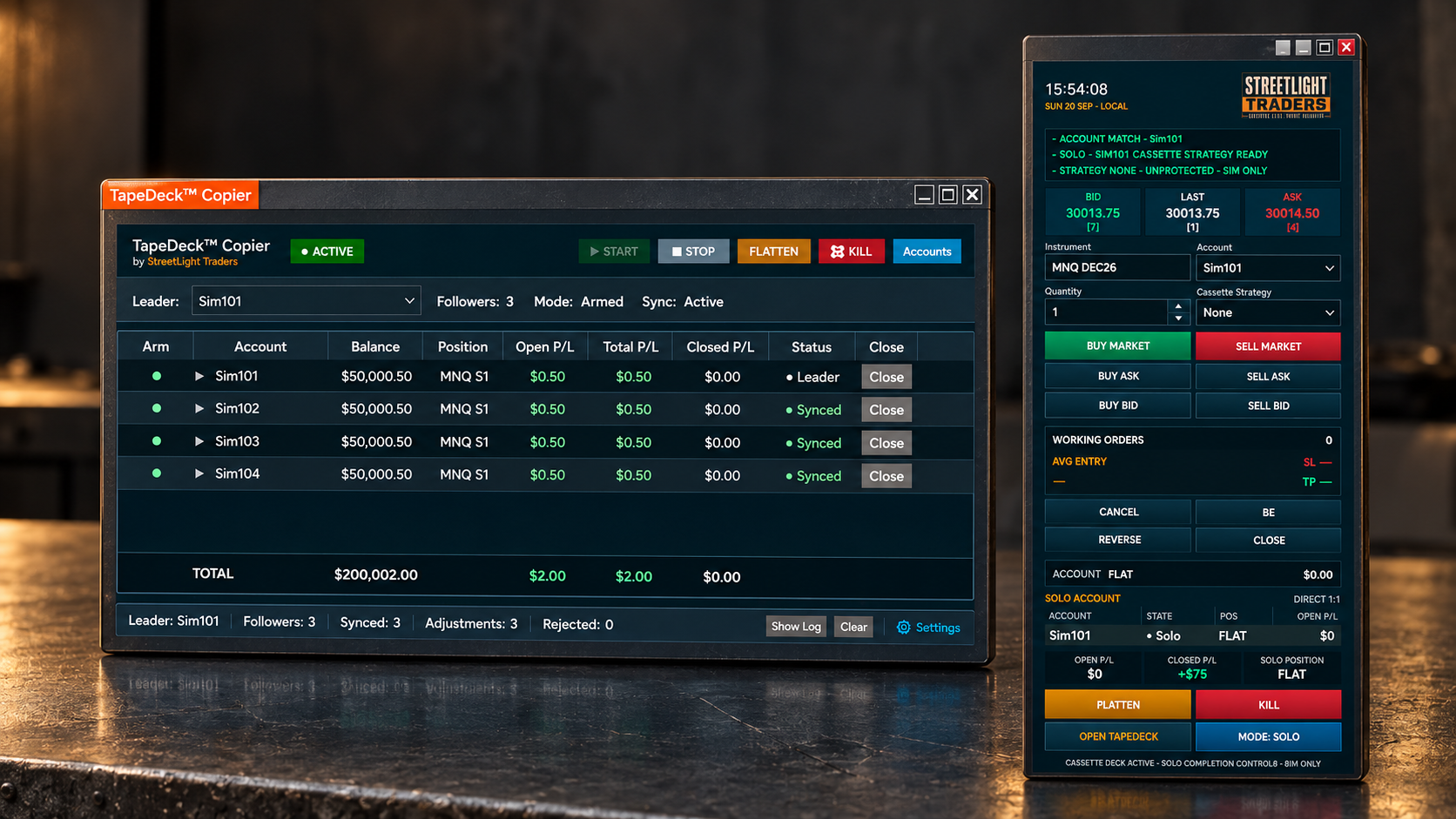
TapeDeck Copier keeps selected accounts aligned with one account you trade. You choose the Leader; TapeDeck moves each armed Follower toward the Leader’s confirmed position at strict 1:1 quantity. It does not choose trades or copy resting orders, stops, targets or ATM brackets. Follower prices and timing can differ.
Before you install
- A Windows computer with NinjaTrader Desktop installed and working.
- The supplied StreetLight NinjaTrader import ZIP for this product. Keep it intact; do not select a raw .cs file or unpack/copy source into NinjaTrader folders.
- A working simulation account and connection appropriate to the SIM test. Check current broker/provider rules before any later non-SIM use.
- A safe time to restart: all affected positions Flat, unintended orders resolved and both products stopped.
Use the package and installation instructions supplied with your purchase. If you cannot find your download or need help choosing the correct file, contact Support before importing.
Read the safety information before any order. NinjaTrader Orders and Positions are the final account-level check when displays disagree.
Back to top ↑Installation — import the ZIP
1. Save the supplied package
Download the supplied TapeDeck Copier NinjaTrader import ZIP to a folder you can find again, such as Downloads. Keep the archive unopened. If an older version is already installed, read Updating before importing.
2. Open the importer
Open NinjaTrader Desktop and locate the Control Center — the main window containing the New and Tools menus. Choose Tools → Import → NinjaScript Add-On…. Select the supplied TapeDeck Copier ZIP and press Import.
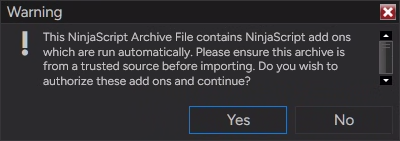
3. Confirm the trusted archive
NinjaTrader may ask whether to authorize AddOns in the archive. Confirm only if this is the verified StreetLight package you intended to import. Otherwise choose No and contact Support.
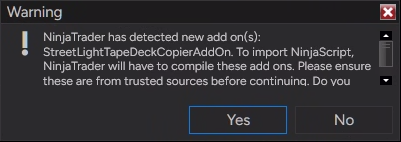
4. Allow the product import to compile
If NinjaTrader reports the new AddOn below, review the product identity and allow the compile/import to proceed. An import or compile error is not a successful installation. Stop and use Troubleshooting; do not keep importing duplicate copies.
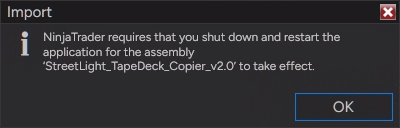
5. Finish the restart
Wait for the import to finish without errors. If NinjaTrader shows a restart prompt, acknowledge it, then close NinjaTrader completely. Confirm NinjaTrader has fully exited, then reopen it. If it still appears stale after a clean restart, restart Windows before trading. If you also changed Cassette, follow its full Windows-restart instruction.
6. Verify — do not trade yet
Follow Verify installation below. A finished import dialog alone does not prove that the correct product opened successfully. Complete the first test in SIM.
Missing the supplied package or unsure which file is correct? Contact Support before importing. Purchasing questions go to Sales. Do not install an archive received from an unverified private message.
Menu reference: NinjaTrader’s AddOn installation guide. StreetLight-specific restart and verification checks still apply.
Back to top ↑Verify installation
1. Locate TapeDeck
In NinjaTrader’s Control Center choose New → TapeDeck™ Copier. The first selection opens the window; selecting it again focuses/restores that same window rather than making another copy.
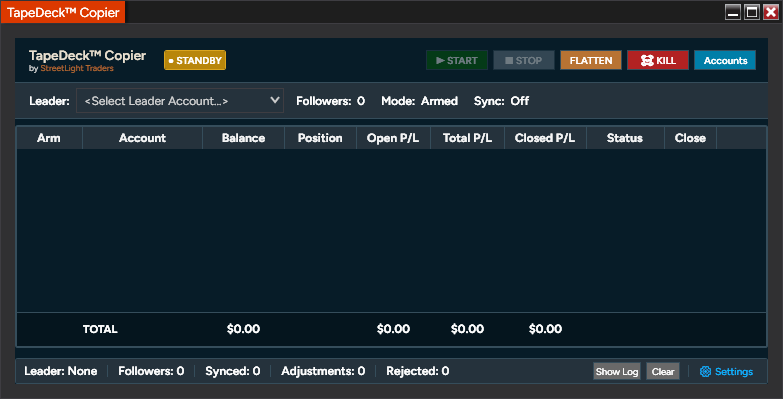
2. Confirm the product and version
You should see the TapeDeck Copier title, Leader selector, account table, START / STOP / FLATTEN / KILL, Accounts and Settings. Open Settings → About to confirm Version 2.0.
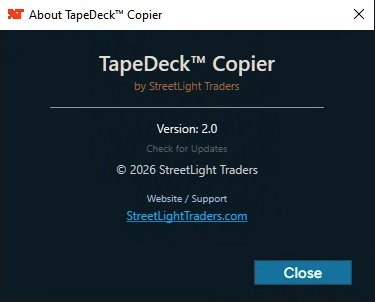
If you see this interface and Version 2.0, the product has loaded. Account rows depend on the available accounts and Registry visibility. Loading is not yet the copied-trade test; continue below.
If the menu is absent, the wrong version appears, or the window fails to open, go to Troubleshooting and Remove / reinstall. Do not trade or import duplicate copies to force it.
Back to top ↑First run in simulation
1. Open and select the SIM Leader
Open Control Center → New → TapeDeck Copier. Leave it in STANDBY. In the Leader dropdown choose your intended simulation account, such as Sim101. Do not select a live or funded account.
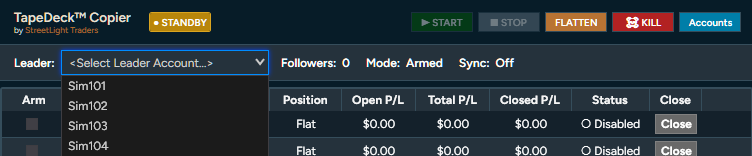
2. Make the Followers visible and arm them
If intended SIM accounts are missing, select Accounts and review the Registry’s Visible/Archived settings. Back in TapeDeck, check Arm only for intended connected SIM Followers, such as Sim102. Never arm the Leader as its own Follower. Confirm every selected account is Flat across instruments and resolve unintended Orders.
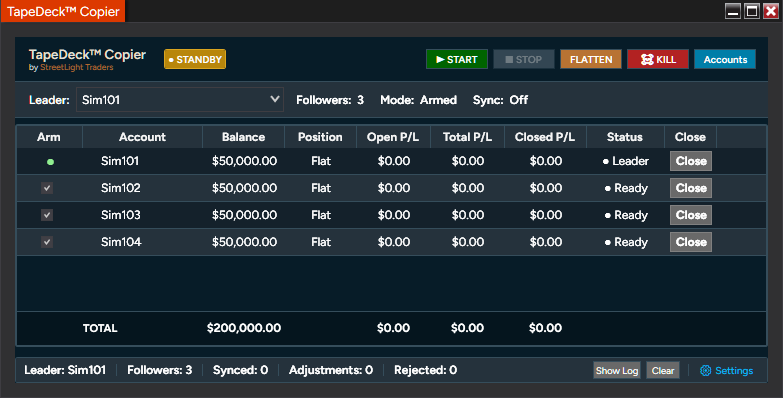
3. Start synchronization
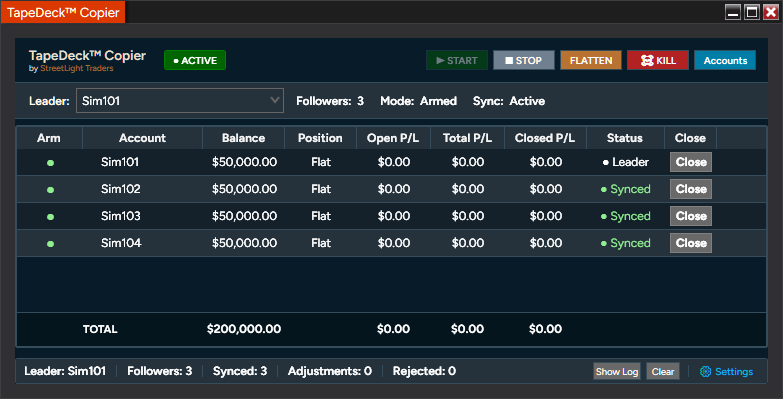
Press START once. Confirm the header becomes ACTIVE and flat Followers show Synced. If START is unavailable or a Follower is not Ready, stop here and check Before START.
4. Make one small Leader trade
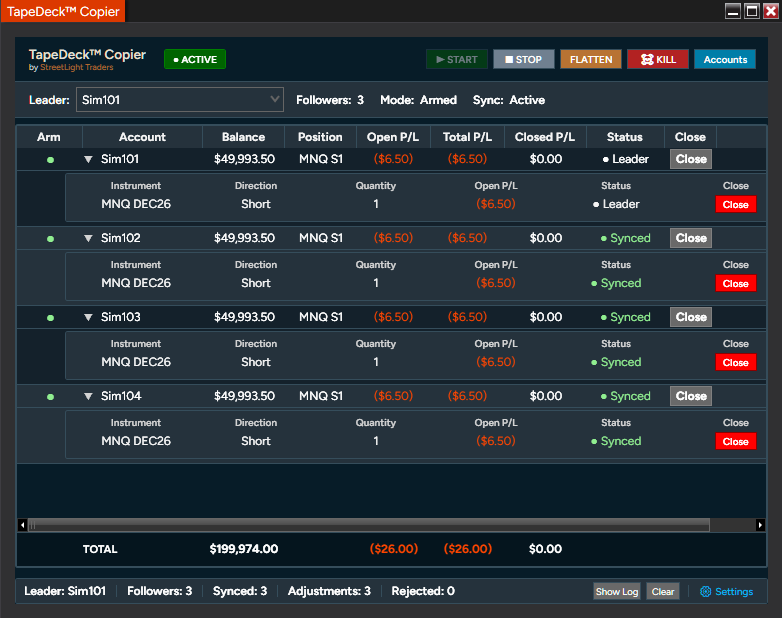
On a familiar NinjaTrader order-entry surface, verify that the order account is the selected SIM Leader and the full contract is correct. Use a small test quantity, such as one contract. Submit once. TapeDeck has no Leader entry button: it follows the confirmed fill. Watch Followers move through Adjusting to Synced and compare signed quantity.
5. Close the Leader and verify the finish
Close the Leader on the same verified SIM account using its order-entry surface. Wait for each intended Follower to return Flat. In Control Center, inspect the Positions and Orders tabs for all test accounts. Resolve any unintended order or rejection. Only then press STOP to return synchronization to STANDBY.
Back to top ↑Understanding the interface
| Area | What to verify |
|---|---|
| Leader selector | The explicitly selected source account. |
| Arm column | Only intended connected Followers are armed; the Leader is not its own Follower. |
| Account rows | Role, actual position context and current synchronization status. Expand a row to inspect separate full-contract lanes. |
| Close controls | Parent account scope versus child contract/lane scope; see the control reference before acting. |
| Footer/status log | Leader, Follower count, synchronization counters, adjustments and rejections. These help explain intent; actual Orders and Positions still govern. |
| Accounts / Settings | Account Registry presentation and display/privacy controls. |
Account Registry
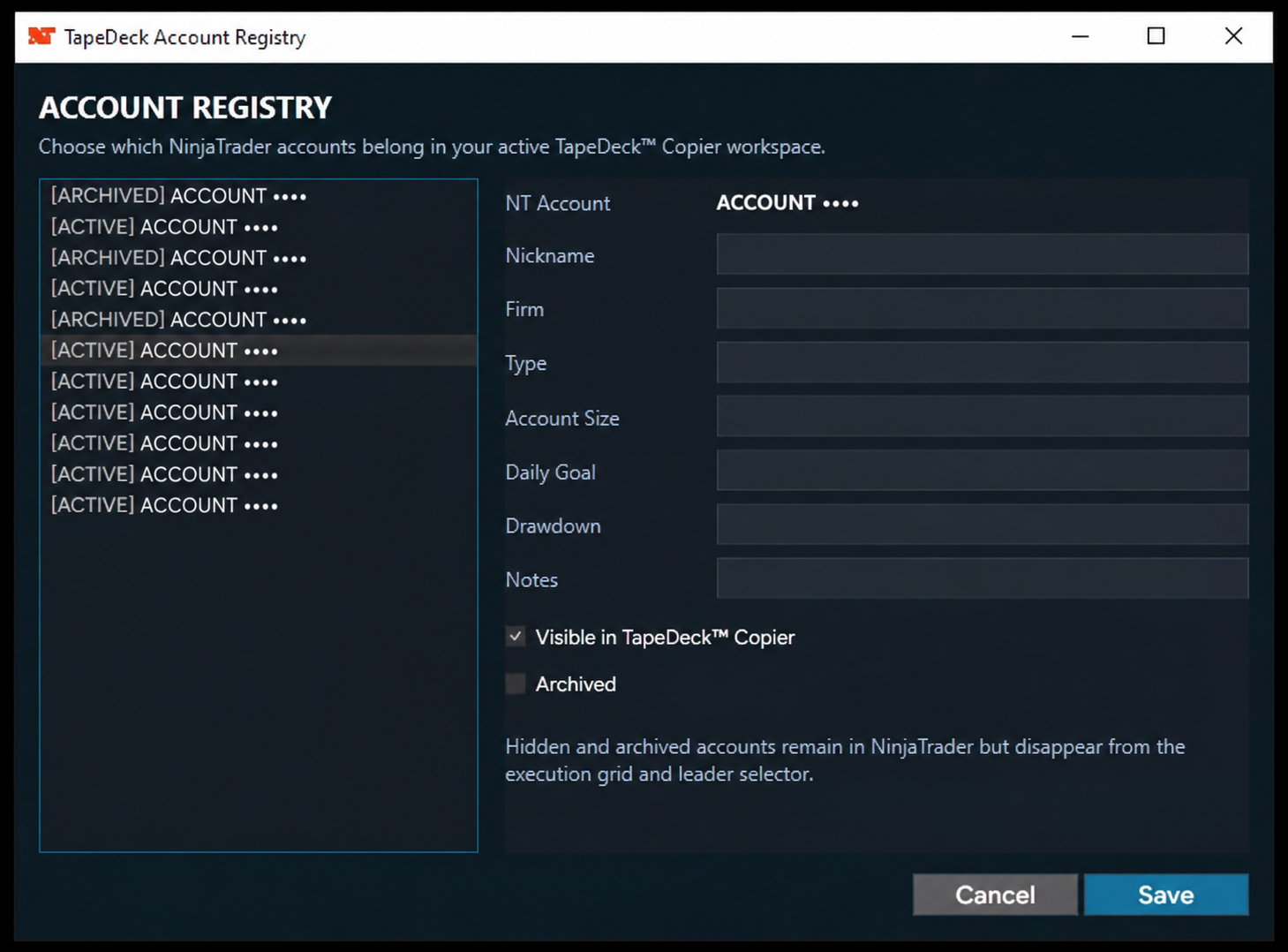
Select Accounts to open the Account Registry. Visible in TapeDeck Copier determines whether an account appears in TapeDeck’s normal workspace and Leader selector. Clearing Visible hides it from TapeDeck without removing the underlying NinjaTrader account. Archived also removes an account from TapeDeck’s normal working presentation; the account remains available in NinjaTrader.
Nickname, Firm, Type, Account Size, Daily Goal, Drawdown and Notes are optional user-maintained display metadata. TapeDeck does not populate them automatically from NinjaTrader, a broker, provider or prop firm. Maintain any values you choose to enter.
| Control / field | How to use it |
|---|---|
| START / STOP | START begins the configured copy session; STOP ends monitoring but does not flatten. |
| Position / P&L | Read position quantity by account/contract. P&L is displayed information, not proof of equal fills or an enforced risk limit. |
| Accounts | Open the Registry to review visible/archived accounts and optional display metadata. |
| Settings | Open display/privacy settings; use its About link for the version. |
| Show Log / Clear | Show activity details; preserve useful evidence before clearing. Review raw logs privately before sharing. |
Normal operation
Keep the checks below beside you during a session. Configure safely in STANDBY, START from Flat, manage the Leader deliberately, and verify the final native account state.
Before START
Return to STANDBY before changing the copy group. Before START:
- Select the intended connected Leader account.
- Arm only the intended connected Followers.
- Confirm the Leader is not also selected as a Follower.
- Confirm no Follower is duplicated.
- Confirm the selected accounts are Flat across instruments, not merely the currently visible chart.
- Confirm the correct full instrument and contract month.
- Review and resolve unintended working orders.
- Resolve account restrictions, rejections or unstable connections; verify permissions and buying power through the relevant provider.
- Confirm current broker / provider / prop-firm rules permit the intended configuration.
- Begin in simulation until the workflow is understood.
The working-order review is an operator duty. Do not treat successful START as proof that every account has zero unintended working orders.
Normal synchronization
- A Leader order executes.
- The confirmed Leader position changes.
- TapeDeck compares each armed Follower’s confirmed position with the Leader target.
- Any mismatched Follower enters Adjusting.
- TapeDeck requests the required market correction.
- The Follower becomes Synced when its confirmed signed quantity equals the Leader target.
ACTIVE and Synced are product states. They are not substitutes for broker/provider confirmation when execution is uncertain.
Scaling, reductions and reversals
| Confirmed Leader change | Follower response |
|---|---|
| Flat → Long 1 | Follower targets Long 1. |
| Long 1 → Long 3 | A Follower currently Long 1 requires Buy 2. |
| Long 3 → Long 1 | A Follower currently Long 3 requires Sell 2. |
| Long 2 → Short 2 | A Follower currently Long 2 requires Sell 4. |
| Position → Flat | Request the quantity necessary to reach zero. |
| Partial Leader fill | Reconcile to the quantity confirmed so far; adjust again if additional Leader fills occur. |
Resting Leader orders
While a Leader limit, stop, target, stop-loss or ATM/OCO order is merely resting, TapeDeck sends nothing to Followers because the confirmed Leader position has not changed. Once that order fills, TapeDeck responds to the resulting confirmed Leader position.
| Leader instruction | While resting | After a fill |
|---|---|---|
| Limit or stop entry | No Follower order. | Market correction toward the new confirmed Leader position. |
| Profit target | No matching Follower target. | Market correction toward the reduced or Flat Leader position. |
| Stop loss | No cloned Follower stop. | Market correction after the stop changes the Leader position. |
| ATM/OCO bracket | Order structure remains Leader-side. | Each confirmed Leader fill can cause a Follower correction. |
Follower exits therefore occur through subsequent market correction and may execute at different prices. For example, an unfilled Leader Sell limit sends nothing to Followers. If it fills and makes the Leader Flat, TapeDeck requests Follower corrections toward Flat.
HELD and deliberate Follower removal
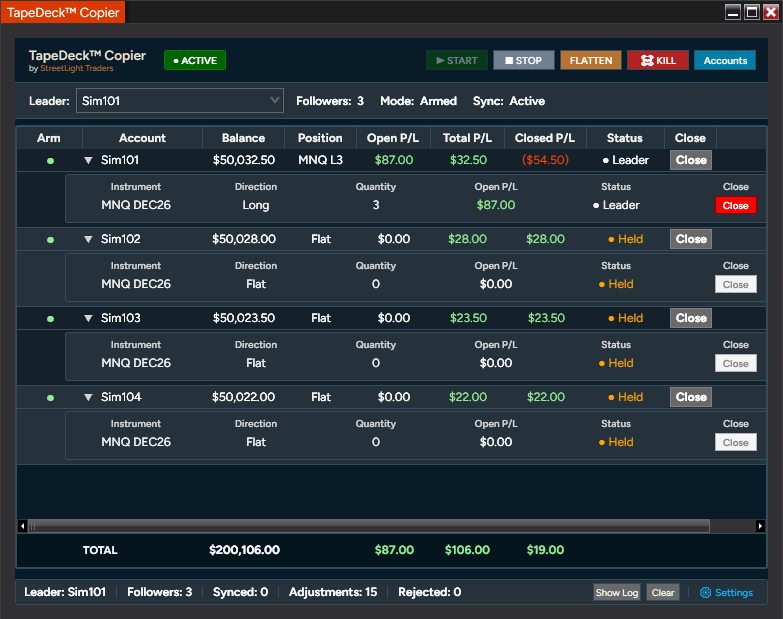
Use the appropriate TapeDeck Close control when deliberately removing a Follower account or contract lane from the current copied trade. TapeDeck requests the intended scope Flat and marks the affected lane HELD.
- Other Followers can remain active.
- Other instrument lanes can remain active.
- TapeDeck does not immediately re-enter the HELD lane into the same Leader trade.
- HELD clears when the corresponding Leader full contract returns Flat.
HELD is deliberate removal, not a request to rejoin the existing positioned Leader. Confirm the requested close actually completed in NinjaTrader.
STOP, Close, FLATTEN and KILL
| Control | Requested action / scope | Required verification |
|---|---|---|
| STOP | Stops monitoring and queued copier intent. STOP DOES NOT FLATTEN OPEN POSITIONS. It does not guarantee withdrawal of an order already submitted to a broker/provider. | Inspect Orders and Positions; deliberately manage any exposure or submitted order that remains. |
| Account Close | The parent Close targets that account’s open instruments. Deliberately closing a Follower removes the affected scope from the copied trade and places affected lanes into HELD. | Confirm every targeted full-contract position and order state, not only the account row. |
| Contract / lane Close | The child Close targets one account and full contract. A deliberately closed Follower lane becomes HELD without stopping other lanes. | Confirm the targeted lane is Flat; other lanes may remain active. |
| FLATTEN while ACTIVE | Directly requests the Leader Flat. Armed Followers reconcile toward the confirmed Flat Leader position. TapeDeck remains ACTIVE, ready for the next Leader trade. | Check Leader and every intended Follower; verify working orders independently. |
| FLATTEN while STANDBY | Broader than the armed copy group: can target eligible visible, non-archived accounts with open positions, including unarmed accounts. | Do not assume only the selected copy group is affected. It does not promise cancellation of every resting order on already-flat accounts/instruments. Review Orders. |
| KILL | Stops synchronization, clears pending copier targets and requests eligible captured/open account scopes Flat according to the emergency workflow. Returns TapeDeck toward STANDBY. Eligible visible, non-archived open-position accounts may be outside the armed group. | Confirm actual final state. Do not assume every resting order on a flat account/instrument was cancelled. |
Keep an independent NinjaTrader and broker/provider emergency path available. Do not repeatedly click controls because the first request appears slow.
End of session
- Stop submitting new Leader entries.
- Review every active contract lane.
- Identify Synced, Adjusting, HELD or Rejected states.
- Use the appropriate Close, FLATTEN or KILL workflow.
- Confirm intended Leader and Follower positions in NinjaTrader Positions.
- Review NinjaTrader Orders.
- Resolve every unintended working order or rejection.
- Return TapeDeck to STANDBY only after the final state is understood.
- Do not close NinjaTrader while unexplained positions, corrections, rejections or connection problems remain.
Cassette + TapeDeck
1. Prepare TapeDeck first
Open TapeDeck, select the SIM Leader, arm only the intended SIM Followers and confirm the required connected/Flat state. Press START and confirm ACTIVE. Keep TapeDeck visible.
2. Prepare Cassette on the intended chart
Turn Cassette on and expand it. Cassette can recognize ready ACTIVE TapeDeck automatically. Confirm COPIER is actually displayed; if not, use the mode control only from a safe Flat/clean state and recheck readiness. Do not assume merely opening TapeDeck makes it ready.
3. Verify the shared Leader
Compare Cassette’s Leader field with TapeDeck’s selected Leader. Verify synchronized chart account, full contract month, Quantity and Cassette Strategy. Set native ATM Strategy None for this managed workflow.
4. Enter and manage from Cassette
Submit one small Leader entry from Cassette. Cassette manages that Leader trade and its eligible protection. TapeDeck responds to confirmed Leader position changes and reconciles Followers. A resting bracket is not cloned to the Followers.
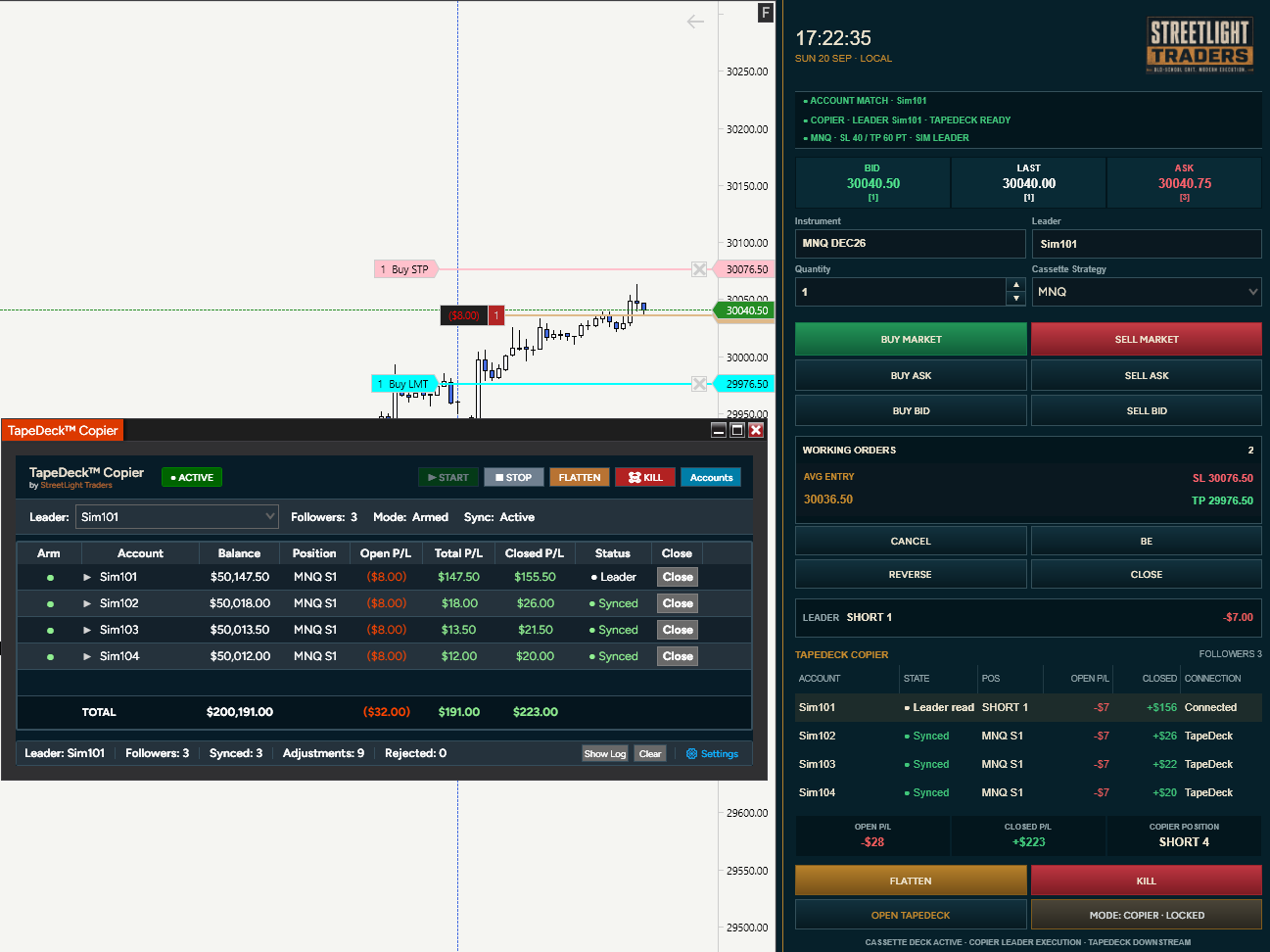
5. Use the right product for the action
Use Cassette for Leader management. Inspect or deliberately close an individual Follower in TapeDeck; Cassette’s downstream Follower display is not a Follower-control surface. A deliberately removed Follower lane becomes HELD until the corresponding Leader contract returns Flat.
6. Complete and check every intended account
Close the Leader, wait for TapeDeck reconciliation and check NinjaTrader Positions and Orders for the Leader and all intended Followers. Do not infer completion from only one product’s Flat label.
Cassette Deck can provide Leader-side entry and position management. TapeDeck independently owns Follower synchronization. Cassette does not directly close or manage individual Followers; use TapeDeck to inspect Follower lanes or deliberately remove one through Close/HELD.
Review Cassette’s COPIER setup and readiness checks. Both products retain independent presentation/privacy controls.
Back to top ↑Updating
An update is a deliberate package import, not an automatic background update. TapeDeck’s Check for Updates text is not an updater.
- Finish all affected trades; confirm Positions are Flat and resolve unintended Orders. Stop TapeDeck synchronization and finish each Cassette context before closing anything.
- Record your currently installed version and keep the prior approved package separately. Do not assume uninstall or replacement preserves every setting.
- Close NinjaTrader completely, then reopen it in a safe, non-trading session.
- Follow the new package’s release instructions. A normal ZIP update uses Tools → Import → NinjaScript Add-On and the replacement ZIP. Accept replacement prompts only for the intended product files. Do not remove first unless the approved release instructions require removal; use the separate removal procedure when they do.
- If removal is required, remove only the identified product component and restart NinjaTrader before importing the replacement; loaded assemblies are not unloaded immediately.
- Require an error-free import/compile. If it fails, stop; save the error details for Support.
- Close NinjaTrader completely. Restart NinjaTrader; restart Windows if stale behaviour persists. If Cassette also changed, use its full Windows-restart requirement.
- Reopen NinjaTrader, use Verify installation, check the version in About, and repeat one small complete First run in simulation before non-SIM use.
Follow the update instructions supplied with your package. If you are unsure which installed component to replace, contact Support before proceeding.
Back to top ↑Remove / clean reinstall
Closing a window or turning a product off does not uninstall it. Removal depends on whether the supplied import ZIP contains a protected assembly or non-protected NinjaScript. A ZIP alone does not identify which removal path applies.
1. Make the platform safe
Confirm affected accounts/instruments Flat and resolve Orders. Stop TapeDeck, finish Cassette cycles and close all NinjaTrader windows. Preserve useful diagnostics before shutdown, especially Cassette’s memory-only log.
2. Reopen only to remove the identified component
For a protected assembly, use Control Center → Tools → Remove NinjaScript Assembly, select only the StreetLight assembly identified by the release instructions, then press Remove NinjaScript assembly. If its identity is unclear, stop and contact Support. Do not remove an unidentified component.
Alternative: non-protected NinjaScript
Only if the release instructions identify your package as non-protected: open New → NinjaScript Editor, expand the relevant AddOns folder in NinjaScript Explorer, locate the exact product script and right-click → Remove. Do not use this branch for a protected assembly or remove unrelated scripts.
3. Restart before reinstalling
Close NinjaTrader completely and restart it. NinjaTrader does not unload a removed assembly until restart; do not immediately re-import the same assembly into that running session.
4. Confirm removal
Check Control Center → New. The removed TapeDeck Copier entry should no longer be available. If it remains, stop and report the installed component names and error details to Support; do not delete folders or DLLs by trial and error.
Clean reinstall
- After the supported removal and full NinjaTrader restart, import only the current approved product ZIP using Installation above.
- Require the import/compile to finish without errors.
- Close NinjaTrader completely. Restart NinjaTrader. If Cassette also changed, perform its full Windows restart.
- Reopen NinjaTrader, verify the product menu/interface/version, configure SIM and complete one small entry-to-Flat validation.
Removal reference: NinjaTrader assembly-removal guide. Use the component name and removal instructions supplied with your product package.
Back to top ↑Troubleshooting
| Problem | Check | What to do |
|---|---|---|
| Import / compile fails | Exact error, correct product ZIP, duplicate installed versions and existing NinjaScript errors. | Stop imports. Keep the error details and installed component list. Contact Support; do not delete unrelated scripts or edit source to silence errors. |
| Product missing after import | Import completed without errors; NinjaTrader fully restarted; correct New menu. | Follow Verify installation. For Cassette, check New → Cassette Deck is checked and the chart strip can expand. If still missing, contact Support. |
| Old version or stale runtime | About version and whether NinjaTrader truly exited. | Close completely; use the documented Windows restart where required. If the old version persists, use the supported removal path only for the exact identified product component. |
| Open TapeDeck fails after Cassette change | Complete Windows restart after installation/replacement/update/compile. | Perform the required full Windows restart, reopen and test in SIM. If it still fails, collect reviewed diagnostics and contact Support. |
| Problem | Check | Action |
|---|---|---|
| START unavailable / Followers not Ready | Leader, armed unique Followers, Flat state across instruments and connections. | Stop new entries. Check NinjaTrader Orders and Positions. Return to STANDBY, correct configuration and resolve state before START. |
| Adjusting persists | Pending/rejected orders, confirmed quantities, connection and market state. | Stop new entries. Check NinjaTrader Orders and Positions. Allow valid acknowledged corrections to resolve; investigate delay/rejection rather than repeatedly submitting controls. |
| Follower differs from Leader | HELD/Adjusting state and independent Follower activity. | Stop new entries. Check NinjaTrader Orders and Positions. Identify expected removal or pending correction before issuing another control. |
| Follower shows HELD | Whether a deliberate Follower Close occurred while the Leader contract stayed open. | Stop new entries. Check NinjaTrader Orders and Positions. Verify its actual position. HELD clears when the corresponding Leader contract reaches Flat; do not force re-entry. |
| Order rejected | Rejection message, permissions, buying power, quantity, full contract and provider state. | Stop new entries. Check NinjaTrader Orders and Positions. Stop adding exposure and resolve the reason before continuing. |
| STOP pressed but positions remain | STOP only disables synchronization; previously submitted orders may still act. | Stop new entries. Check NinjaTrader Orders and Positions. Manage remaining positions and working orders deliberately using the appropriate verified scope. |
| FLATTEN / KILL state uncertain | Orders, open positions, rejections and connection acknowledgements on all intended accounts. | Stop new entries. Check NinjaTrader Orders and Positions. Use the independent emergency path if needed; never assume the request completed. |
| Connection interrupted | Affected accounts, broker/provider connection and actual exposure. | Stop new entries. Check NinjaTrader Orders and Positions. Do not resume until the account state is reconciled. Use native/provider controls where available. |
| Runtime appears stale | Whether NinjaTrader fully exited and its processes ended after the change. | Stop new entries. Check NinjaTrader Orders and Positions. Collect relevant diagnostics safely; cleanly restart only after exposure is resolved. Reboot Windows if stale behavior remains, then validate in SIM. |
| Unexpected working order | Account, full contract, origin and intended purpose in NinjaTrader Orders. | Stop new entries. Check NinjaTrader Orders and Positions. Resolve the actual order deliberately. Do not assume STOP or a flat-account FLATTEN request cancelled it. |
Reference
Read before operating
Futures trading involves substantial risk and is not suitable for every trader. Losses can exceed expectations, and market, connection, provider or exchange conditions can prevent an order from filling at the price or time shown.
StreetLight products assist execution. They do not select trades, predict markets, provide investment advice, guarantee fills or execution quality, eliminate slippage or latency, ensure broker or prop-firm compliance, or prevent trading losses.
- Learn the complete workflow in simulation.
- Understand the NinjaTrader order-entry and account controls involved.
- Review the current rules for every broker, provider, prop firm and account program you use.
- Maintain an independent emergency path through NinjaTrader and the applicable broker/provider.
- Treat every software button press as a request — not proof that the requested action completed.
- Verify actual orders and positions in NinjaTrader.
- Stop trading whenever account state, connection state, working-order state or product state is unexpected.
What TapeDeck does
TapeDeck Copier is a strict one-to-one position synchronizer for NinjaTrader Desktop. The operator explicitly selects one Leader account and arms one or more Followers. While TapeDeck is ACTIVE, it monitors confirmed Leader position changes and reconciles armed Followers toward the same signed quantity on the corresponding full contract.
One explicitly selected Leader, one or more deliberately armed Followers and strict 1:1 signed quantity define the copy group. TapeDeck uses market corrections after confirmed Leader changes, including scaling, reductions, reversals and partial fills. Deliberate Follower removal is handled through HELD.
| Confirmed Leader | Each armed Follower target |
|---|---|
| Long 1 | Long 1 |
| Long 3 | Long 3 |
| Short 2 | Short 2 |
No ratios. No percentage copying. No multipliers.
What it does not copy
TapeDeck does not clone resting Leader entry limits, resting entry stops, profit targets, stop-loss orders, OCO relationships or NinjaTrader ATM structures. It does not copy identical execution prices or identical execution timing.
Followers receive market corrections after the Leader’s confirmed position changes. Follower execution prices may differ from the Leader, another Follower, or the displayed market when the Leader originally submitted the order.
Status reference
| State | Meaning |
|---|---|
| STANDBY | Synchronization is not running. Configuration can be reviewed or changed. |
| ACTIVE | TapeDeck is monitoring the Leader and reconciling armed Followers. |
| Ready | Follower is armed and prepared before synchronization begins. |
| Synced | Confirmed Follower signed quantity equals the current Leader target. Synced does NOT mean identical fill price, timing or P/L. |
| Adjusting | A correction is queued, submitted, partially filled or awaiting confirmation. |
| HELD | The Follower/contract lane was deliberately removed from the current Leader trade. |
| Rejected | A submission or execution problem requires operator attention. |
Multiple instruments
TapeDeck tracks synchronization by Follower account + full contract identity. A Follower can have independent synchronization states for separate instruments/contracts.
- Verify exact contract months.
- Never assume similarly named contracts are interchangeable.
- Review every lane before Close, STOP, FLATTEN, KILL or shutdown.
- Use conservative account/instrument counts until the environment is understood.
A screenshot showing three Followers is an example, not a published capacity limit. No numeric maximum Follower capacity is specified here.
Slippage and latency
Follower correction occurs after the Leader execution and confirmed position change are known. Timing can vary with local computer performance, NinjaTrader processing, network conditions, connection quality, provider/broker/prop-firm infrastructure, exchange conditions, liquidity, volatility, partial fills, rejections, and the number of accounts and active instruments.
TapeDeck does not guarantee identical fills, simultaneous fills, zero slippage, zero latency, identical P/L, broker-independent behavior, prop-firm compliance or loss prevention.
Level 2 market-depth data is not required for TapeDeck’s position-synchronization mechanism. It does not eliminate Follower latency or guarantee better fills.
Settings and Streamer Mode
Display Settings control visible columns, activity-log visibility, Streamer Mode and Always on Top. These are presentation controls; they do not alter synchronization behavior.
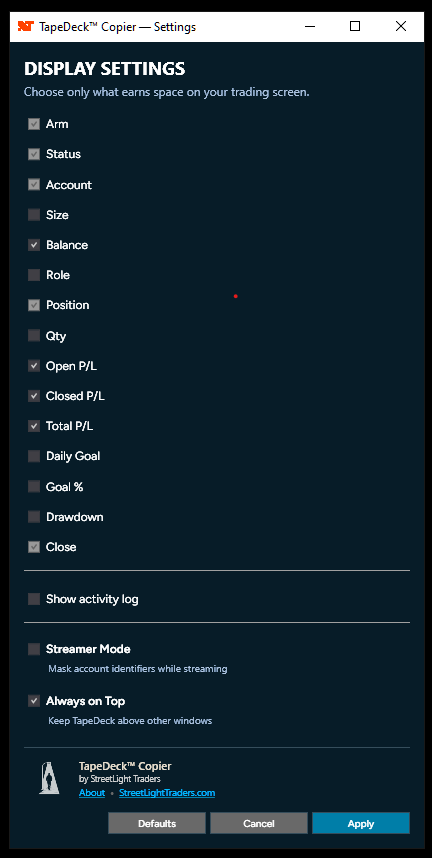
Streamer Mode
TapeDeck Streamer Mode masks account identifiers displayed by TapeDeck. It does not automatically mask Cassette Deck, NinjaTrader, broker/provider windows, other Windows applications, the rest of the desktop or saved diagnostic log files.
If both products are visible during a stream, configure and check each product’s Streamer Mode independently. Inspect the entire final screen before sharing it.
Diagnostics and privacy
The visible activity log can help explain copier activity; it does not replace Orders and Positions. TapeDeck may save diagnostic information locally under Documents/NinjaTrader 8/log/TapeDeck Copier. Saved data can contain raw account/order identifiers even when Streamer Mode masks the visible interface.
- Review relevant diagnostic material.
- Remove or redact information you do not wish to share.
- Send it only through the private StreetLight support process: support@streetlighttraders.com.
- Never publicly post account identifiers, credentials or sensitive broker/provider information.
Visible Clear/Hide Log controls are not evidence that saved diagnostic files have been erased or sanitized. Contact TapeDeck Support.
Current operator documentation: TapeDeck Copier Version 2.0. TapeDeck runs locally with NinjaTrader Desktop; the computer, platform and required connections must be running. About identifies the public product version. A version display or “Check for Updates” label is not an automatic updater.
| Term | Meaning |
|---|---|
| Leader | Explicitly selected source account whose confirmed positions are monitored. |
| Follower | Deliberately armed account targeted at strict 1:1 signed quantity. |
| Lane | Independent state for one account and full contract identity. |
| Reconcile | Request the signed quantity difference needed to reach the confirmed target. |
| Flat | Zero confirmed position quantity in the relevant scope. |
Limitations: strict 1:1, no cloned resting orders or native brackets, variable fill timing/prices, Flat-state START, presentation-only risk metadata and product-local Streamer masking.
Back to top ↑